A page for every event
Details, “Add to calendar” and the registration form, in your theme’s own look.
A WordPress plugin by CraftRoq
Bookings and events for WordPress: appointments, classes and workshops, with staff hours, a calendar, email reminders and event registration.
On WordPress.orgTested with WordPress 7.1.3·Updated October 12, 2026
Bookings and events, simplified
CraftRoq Schedule is a booking and event plugin for WordPress. Visitors choose a service, a person, a day and a time, and are only offered times that are free. For events, they register until the last place is taken. You confirm, reschedule and follow up from one dashboard.
How it works
What your customer sees, and then what you see.
Each service is a card with its duration and price. The price is a label you type, such as “$85” or “Free”.
Only free times are offered. They are worked out from each person’s working hours and days off, the bookings already made, and the buffer time you keep between appointments.
The customer sees a confirmation with a link to manage the booking and an “Add to calendar” (.ics) download, and gets the same by email.
Key numbers, appointments per day, today’s agenda, the bookings that need your attention, staff workload and upcoming events, on one screen.
Filter bookings by status, search them, export them as CSV, change one with a click or several at once.
A month and a week view of bookings and events, colour-coded by status and filterable by staff member.
Bookings
Set up what you offer and when, and let customers book themselves in.
Events
An event has its own page with a registration form, and closes itself when it is full.
/events/ or /workshops/, with a warning if a page already uses it.Details, “Add to calendar” and the registration form, in your theme’s own look.
Dates, location, online link and capacity sit in the editor’s sidebar, beside the description you write.
Staff
Each person has a profile, working hours, days off and the services they provide.
Notifications
Customers, admins and staff are kept informed without you writing a single message.
Design, privacy and access
Choose an accent colour, corner style and font under Settings, with a live preview, or let a block theme’s colours be used instead. One form can have its own colour from the block sidebar, the Elementor Style tab or the shortcode.
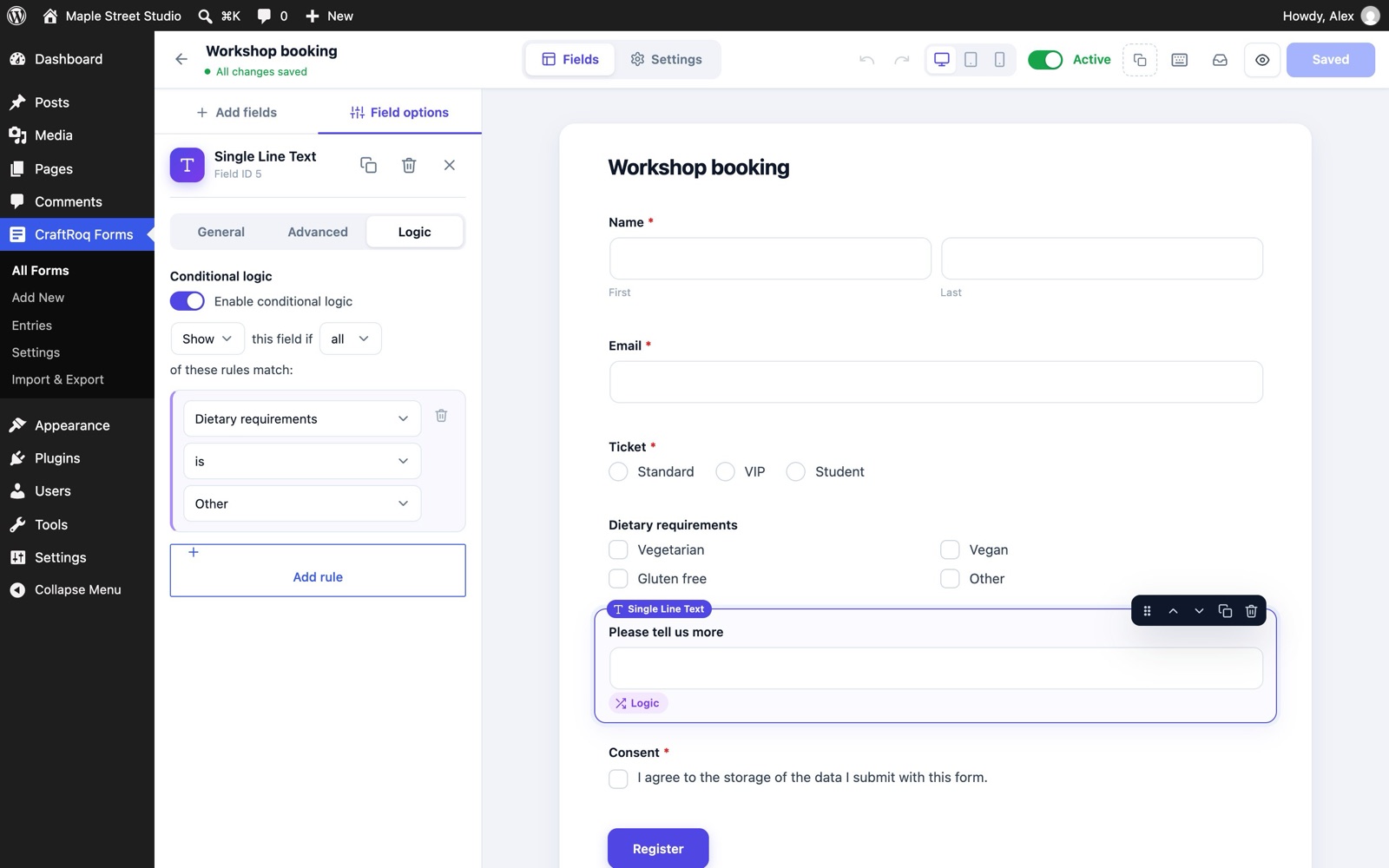
Add text, number, date, dropdown and checkbox questions to the booking and event forms, without code. The answers appear in the admin, in emails, in CSV exports and in the privacy tools.
Works with WordPress’s Export and Erase Personal Data tools. An optional consent checkbox links to your privacy policy, the time of consent is stored, and suggested privacy policy text is provided.
The calendar and time slots announce full dates and selections to screen readers, and keyboard focus follows each step.
Every string can be translated, including the booking widget, emails, block editor panels and CSV column titles. Right-to-left languages are supported.
Copy a template into your theme and edit the copy. Templates carry a version, and copies that fall out of date after an update are flagged under Settings › Developers and in Site Health.
For developers
--crs-accent and --crs-radius.craftroq-schedule/v1.docs/ folder.[craftroq_booking]
[craftroq_events]
[craftroq_event_registration]
[craftroq_manage_booking][craftroq_booking accent="#0f766e"].crs {
--crs-accent: #0a7c66;
--crs-radius: 4px;
}Free and Pro
CraftRoq Schedule Pro is a separate add-on that is still in development. Everything on this page is in the free plugin today.
| Feature | Free | Pro (in development) |
|---|---|---|
| Booking form, services, staff hours and days off | Included | Included |
| Events with registration, capacity and attendee lists | Included | Included |
| Dashboard, bookings list and month and week calendar | Included | Included |
| Email notifications, reminders and calendar (.ics) links | Included | Included |
| Custom form questions, CSV export and privacy tools | Included | Included |
| Payments: Stripe, PayPal, Razorpay, WooCommerce | Not included | Included |
| Recurring and group bookings | Not included | Included |
| Waitlists and ticket types | Not included | Included |
| Google and Outlook sync | Not included | Included |
| Zoom and Meet | Not included | Included |
| QR check-in | Not included | Included |
| Locations and resources | Not included | Included |
| Advanced analytics | Not included | Included |
Questions
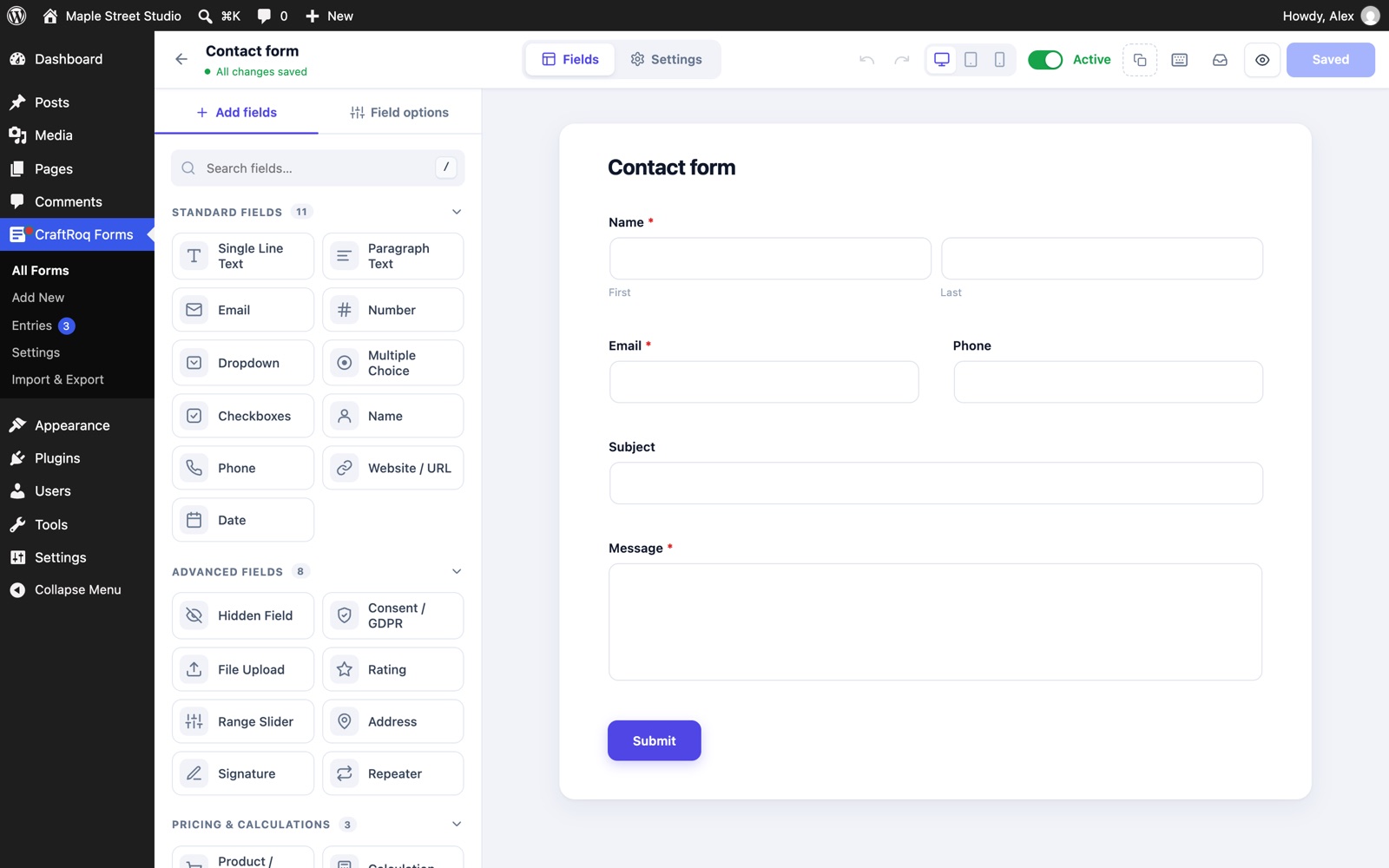
Something else? Read the step-by-step guide or ask before you install.
Open Schedule › Staff, edit a person and copy the “Calendar feed (iCal)” link into Google Calendar (“From URL”), Apple Calendar or Outlook. Regenerate the link to revoke old subscriptions.
Go to Schedule › Settings › Appearance and pick an accent colour, corner style and font; the preview updates as you go. Block themes can follow the theme’s colours instead. For one form only, use the Colours panel in the block sidebar, the Elementor Style tab, or [craftroq_booking accent="#0f766e"].
Yes, without code: Schedule › Settings › Form fields. Add questions (short or long text, number, date, dropdown, checkbox), choose which form they appear on and whether they are required. Answers are shown on the booking or attendee, in emails, in CSV exports and in the personal data tools.
Copy any file from the plugin’s templates/ folder into yourtheme/craftroq-schedule/ (ideally in a child theme) and edit the copy. Schedule › Settings › Developers lists your overrides and flags any that are out of date after an update.
Not in the free plugin: the price on a service is a label shown to customers. Online payments are planned for CraftRoq Schedule Pro, which is in development.
Yes. Every string, including the booking widget, emails, block editor panels and CSV column titles, can be translated. Right-to-left languages are supported.
No. To remove all bookings, customers, staff and settings on uninstall, add define( 'CRAFTROQ_SCHEDULE_REMOVE_ALL_DATA', true ); to wp-config.php first.
Inside WordPress under Schedule › Settings › Developers, which shows every guide (overview, styling, templates, form fields, JavaScript, hooks reference, REST API, recipes) with code you can copy. The same guides are in the plugin’s docs/ folder.
Free and GPL licensed. WordPress 6.3 or newer, PHP 7.4 or newer.